
Know what’s arriving and what you can still promise.
See which containers are on the way, reserve inbound stock against sales orders, and trace what shipped by lot. When plans change, give purchasing, logistics, and sales the same place to work it out.
Give every shipment its own conversation.
When an ETA changes or a broker fee needs a second look, open the container and talk it through right there. Mention a teammate, attach the confirmation, and see recent record changes alongside the discussion.
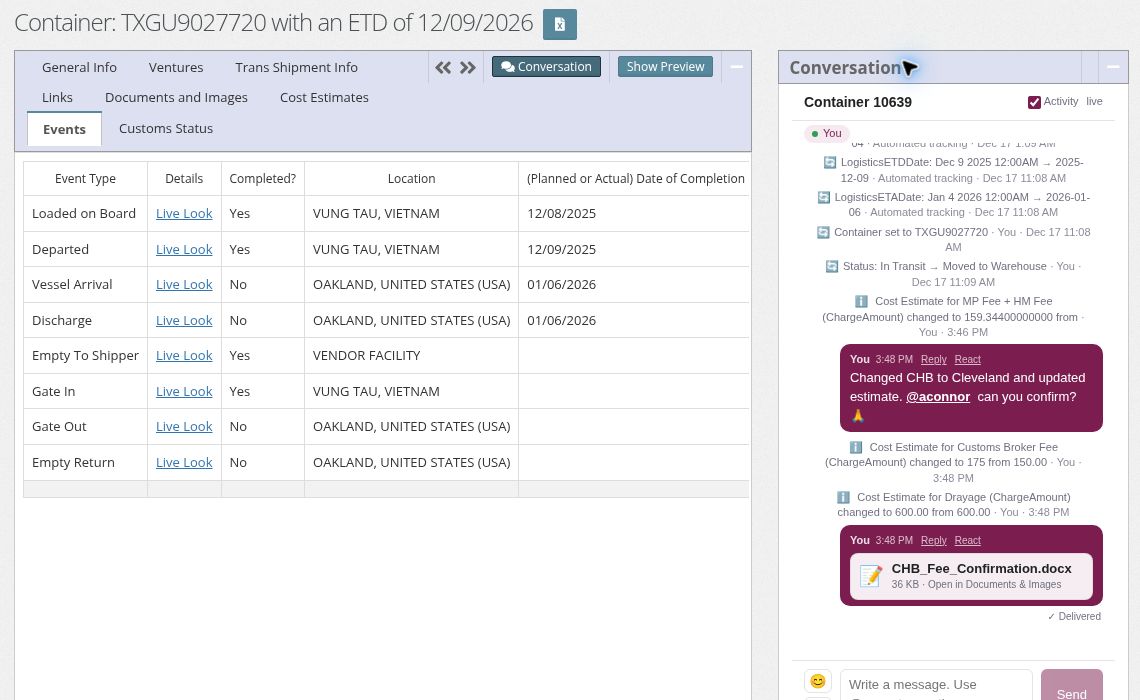
Get the right person involved. Mention a teammate and they receive an email with a link directly to the record.
Keep the paperwork with the shipment. Attachments are saved in the record’s Documents & Images tab.
Ask @Viv (Beta). Try “What’s the status of this container?” Viv answers in the thread using the current record details you have permission to see. Beta availability varies by company.
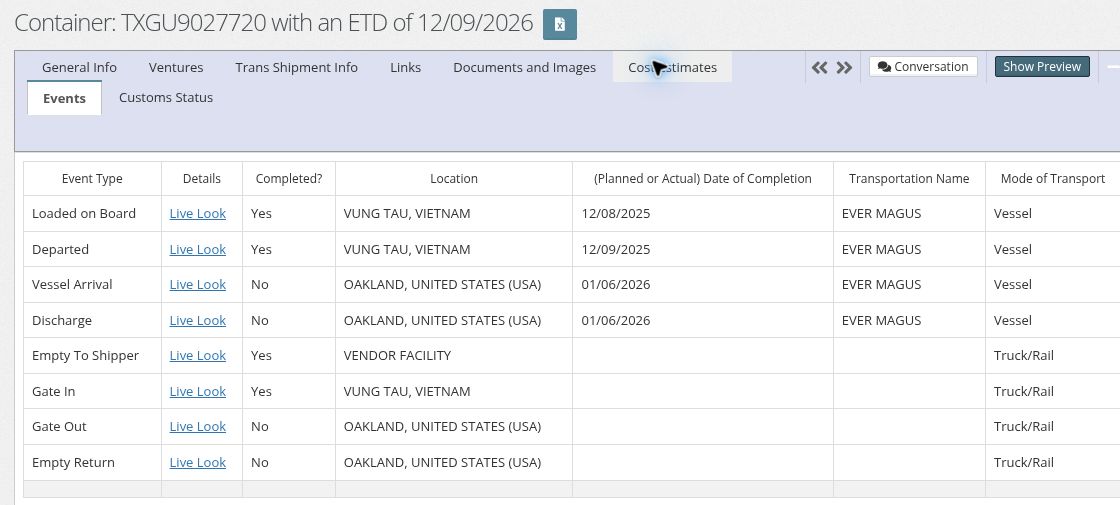
See which milestones are complete and what’s still ahead.
Open the Events tab to see completed and pending milestones, locations, and planned or actual dates. When a shipment slips, start the conversation from the same record.
When a container slips, what can sales still promise?
Work through the questions your team needs to answer before calling a customer or releasing a shipment.
01 · Which orders are counting on this shipment?
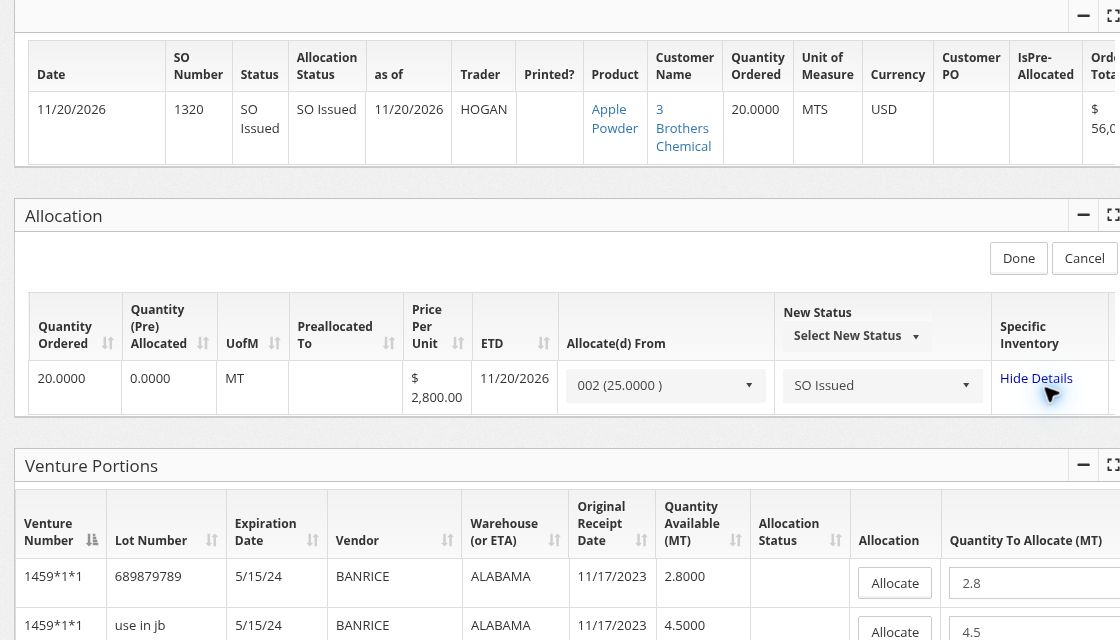
Compare the updated ETA with the sales orders tied to that inbound stock. Preallocate purchase order quantities to specific sales orders so the team can see what’s spoken for before the container arrives.
In the demo: Venture Explorer for container ETA and quantity available, then the linked sales orders for the commitments.
02 · Which lots should the warehouse ship?
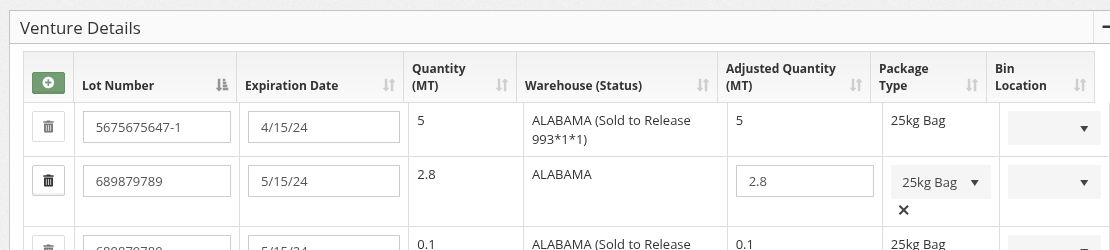
Check the lot, warehouse location, and expiration date where recorded. Specify which lots the warehouse should pull on the release or pick ticket. If a customer asks about a lot later, trace it back to the supplier and see who received it.
In the demo: Lot-level inventory and a warehouse release showing which lots to pick.
03 · What changed in inventory?
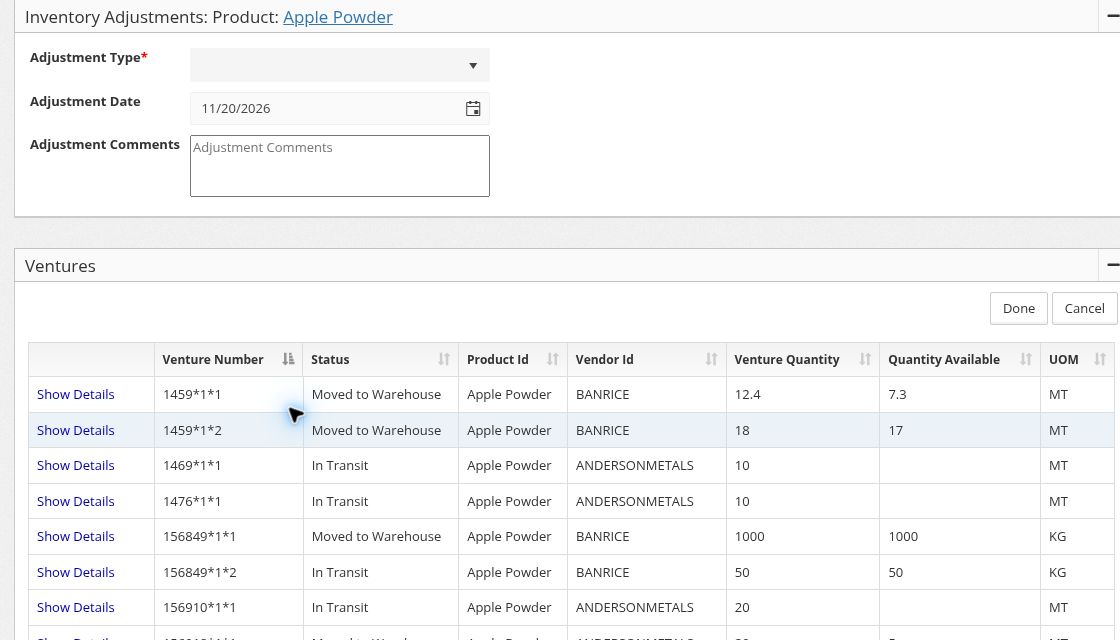
When a warehouse count differs from what’s recorded, review the inventory adjustment and open the lot detail to see which lot it affects.
04 · Did the shipment still make money?
Review the purchase cost alongside freight, duty, brokerage, and other shipment charges. Compare estimated and actual landed costs as charges are recorded, then see what that means for the margin on the shipment.
In the demo: Venture Analysis with the underlying cost entries. Ask to see how a revised broker fee changes the landed cost.
See it on a shipment like yours.
Walk through a food ingredient shipment from purchase order and container tracking to sales order allocation, lot-level inventory, and landed cost.